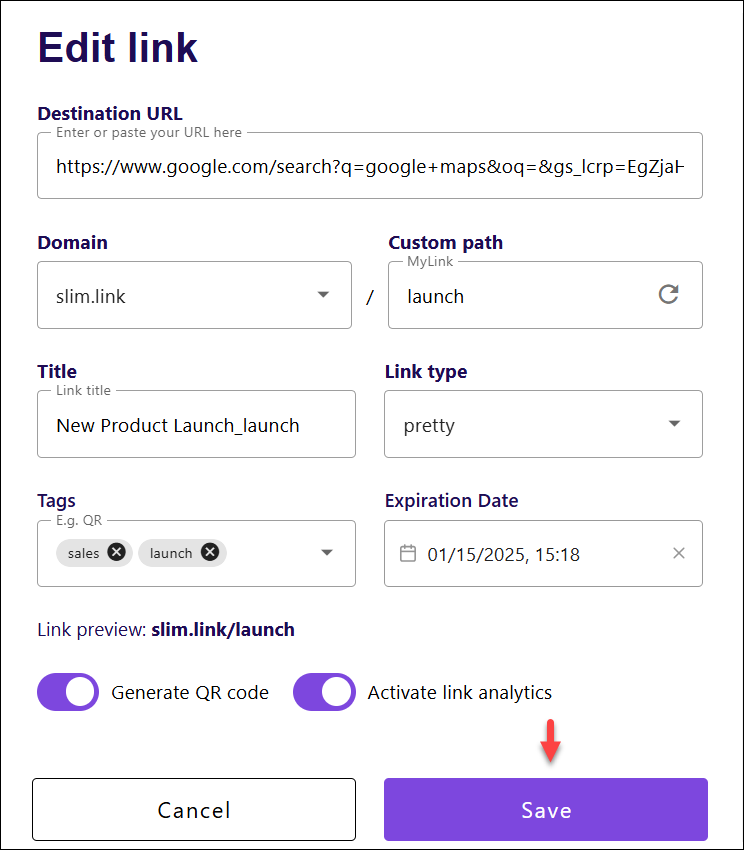
With Slimlink, you can add tags to your links during the link creation process or by editing an existing link. When creating a new link, simply enter the desired tags in the designated field. If you need to add tags later, open the link in edit mode, input your tags, and save the changes. Tags can be anything that helps you organize your links, like campaign names, categories, or themes.
For example, if you're promoting a winter sale, you might tag links with "WinterSale2025" or "HolidayPromo" to group them together for easy access and analytics tracking. Adding tags ensures that your links are well-organized and can be efficiently searched or analyzed when needed.
For example, if you're promoting a winter sale, you might tag links with "WinterSale2025" or "HolidayPromo" to group them together for easy access and analytics tracking. Adding tags ensures that your links are well-organized and can be efficiently searched or analyzed when needed.
To add tags when creating a link:
- Log in to your Slimlink account.
- Click Create a new link on the Home page.
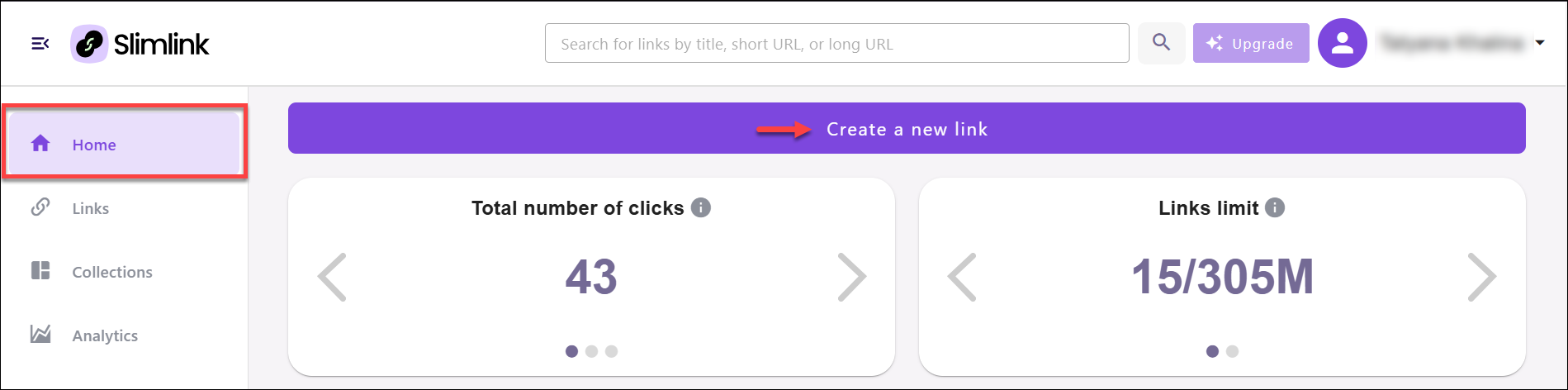 Alternatively, you can open the Links section and select Create a new link from there.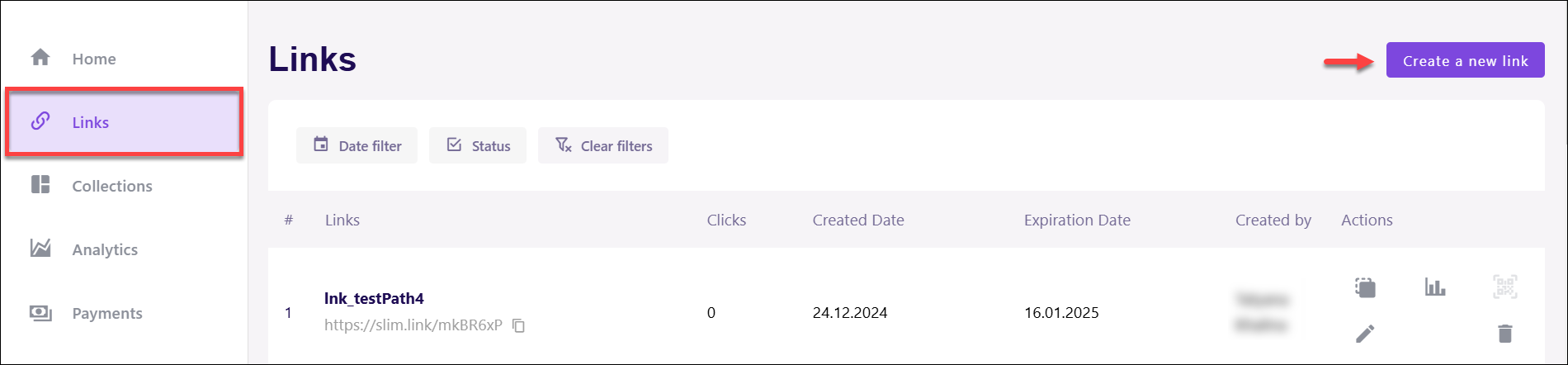
- In the Destination URL field, enter the link to be shortened.

- This will open the link creation page. Click in the Tags field to expand the list of existing tags. Here, you can:
- Add new tags by directly typing the tag in the editable Tags field and clicking Enter. Remember that tags must not contain any spaces.
- Select the existing tag from the list by using the checkbox.
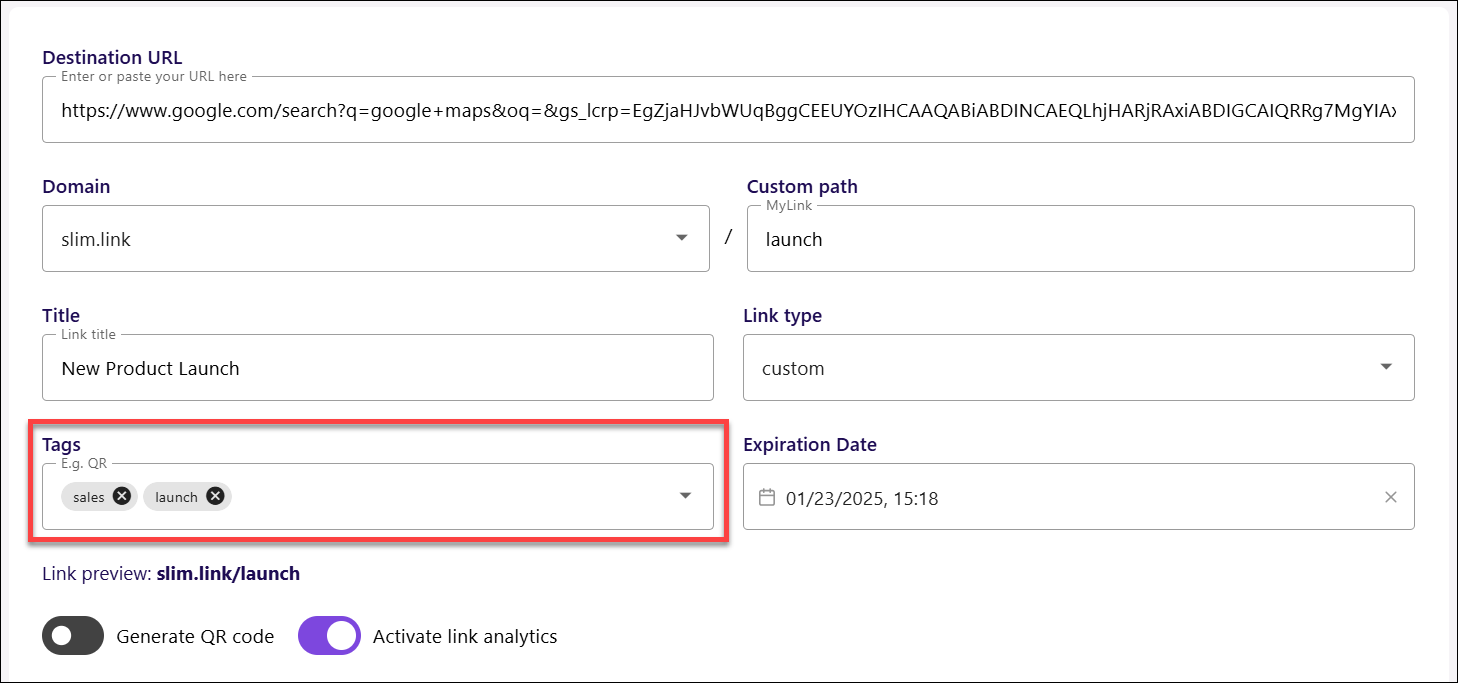
- Click Create link once done. The associated tags will be saved along with link data.
To update tags when editing a link:
- Log in to your Slimlink account.
- Navigate to the Links section, and find the required link (you can use the Search option, see How can I find the required link?)
- Click the Edit icon in the Actions column.
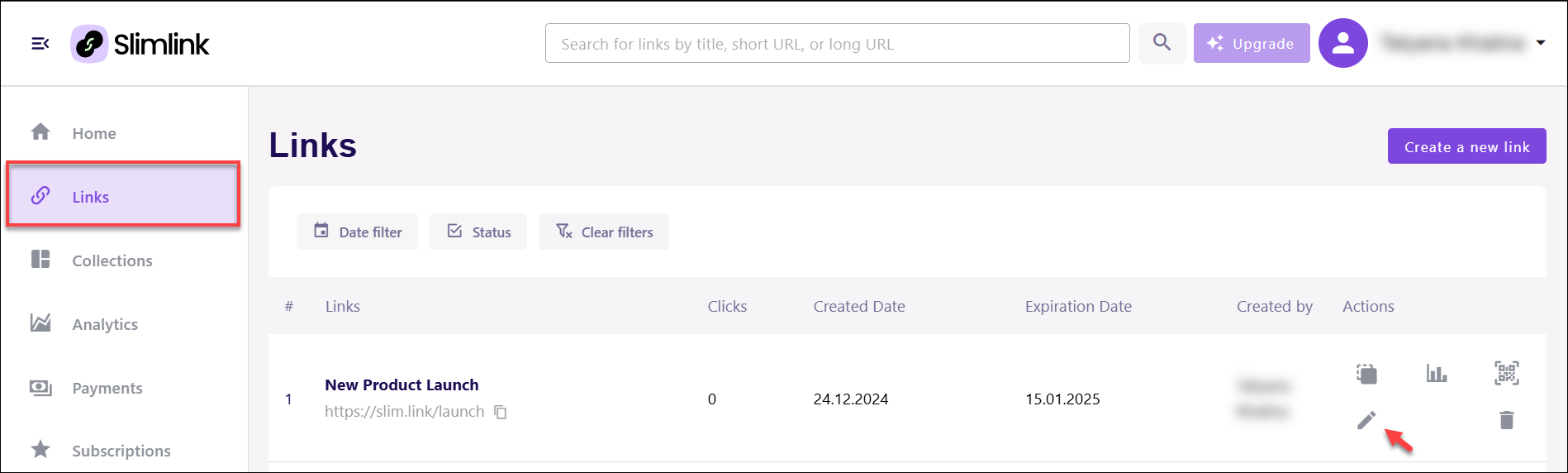
- In the Edit link pop-up window, update the tags in the Tags field. Here, you can:
- Add new tags by selecting them from the dropdown list or simply typing in the editable field and clicking Enter.
- Delete specific associated tags by pressing the Delete icon against the required tag.
- Delete all tags associated with the link by pressing the Delete icon located to the right of the editable field.

- Click Save to apply the changes.